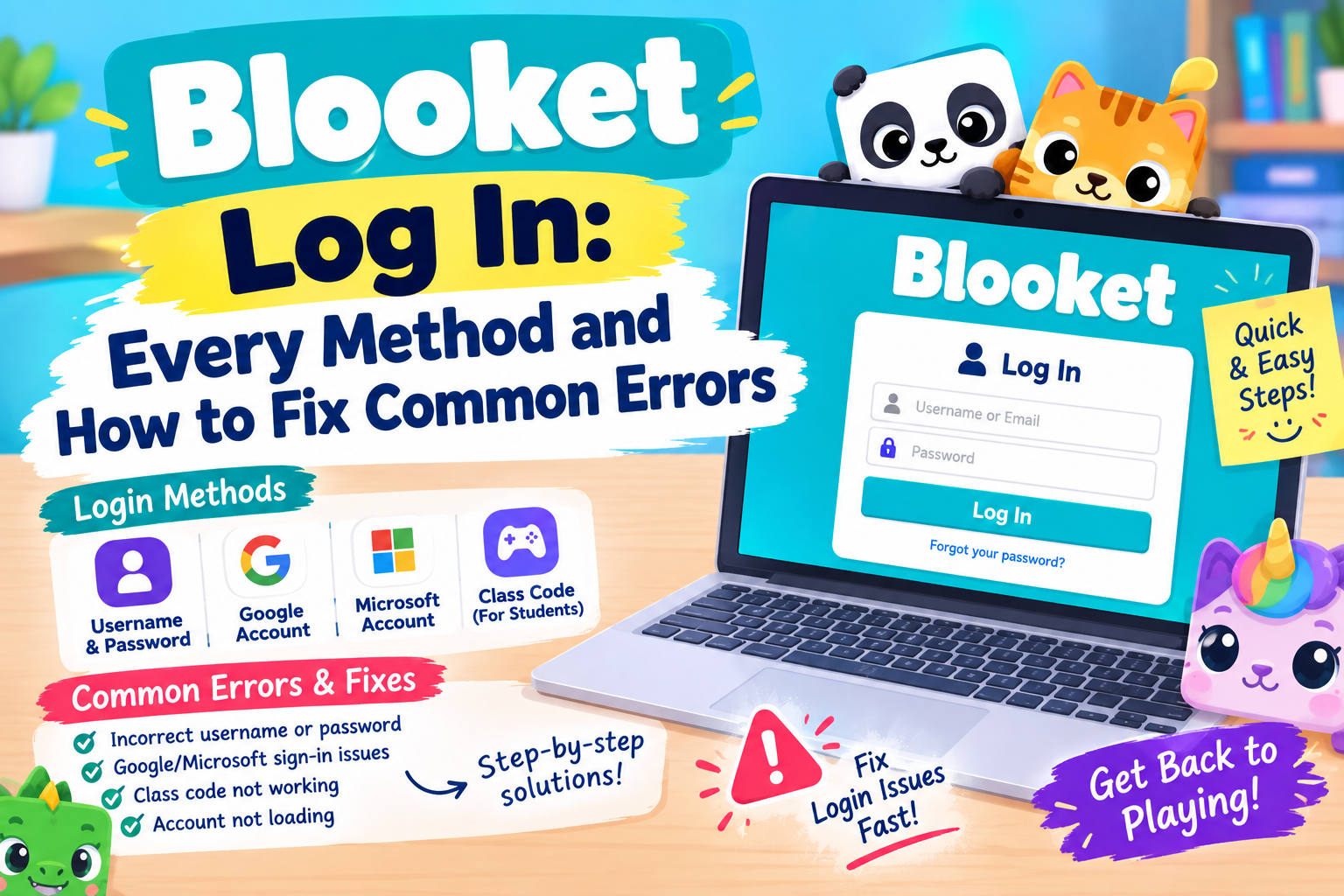
Blooket Log In: Every Method and How to Fix Common Errors
Three different buttons, one password nobody quite remembers, and a login screen that looks simple until it isn’t. Most Blooket log in trouble comes down to picking the wrong one of three sign in methods, not anything actually broken on the account.
This guide covers all three ways to sign in, the exact steps for each, and the fixes for the handful of errors that account for nearly every login complaint.
The Three Ways to Log In to Blooket
| Method | Best For | What You Need |
| Email and password | Full control, works on any network | The email and password used at signup |
| Fastest, no password to remember | Being signed into the right Google account | |
| Clever | School districts using Clever | A district account, only shown if enabled |
Every Blooket log in uses exactly one of these three. Picking the wrong one, especially forgetting an account was created with Google rather than email, causes a large share of the invalid password reports people run into.
How to Log In with Email and Password
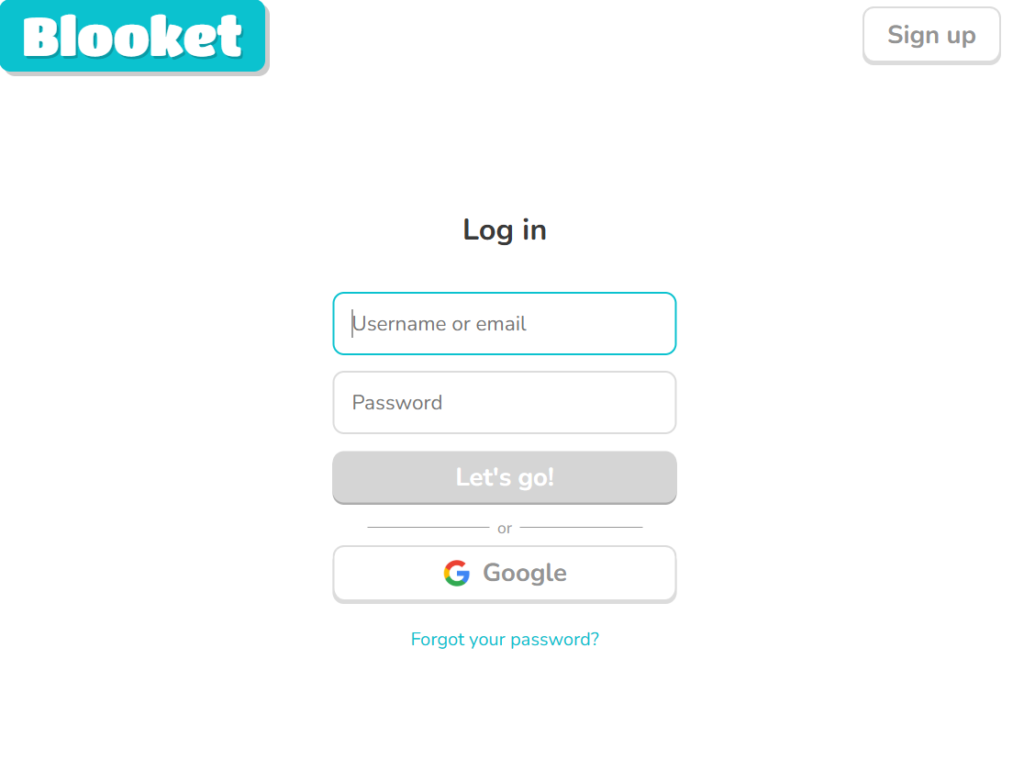
- Step 1. Go to id.blooket.com, or click Login from the main Blooket homepage, which sends you to the same page.
- Step 2. Type the email address used at signup into the first field.
- Step 3. Type the matching password. Double check Caps Lock is off before assuming the password itself is wrong.
- Step 4. Click Log In to land on your dashboard.
How to Log In with Google
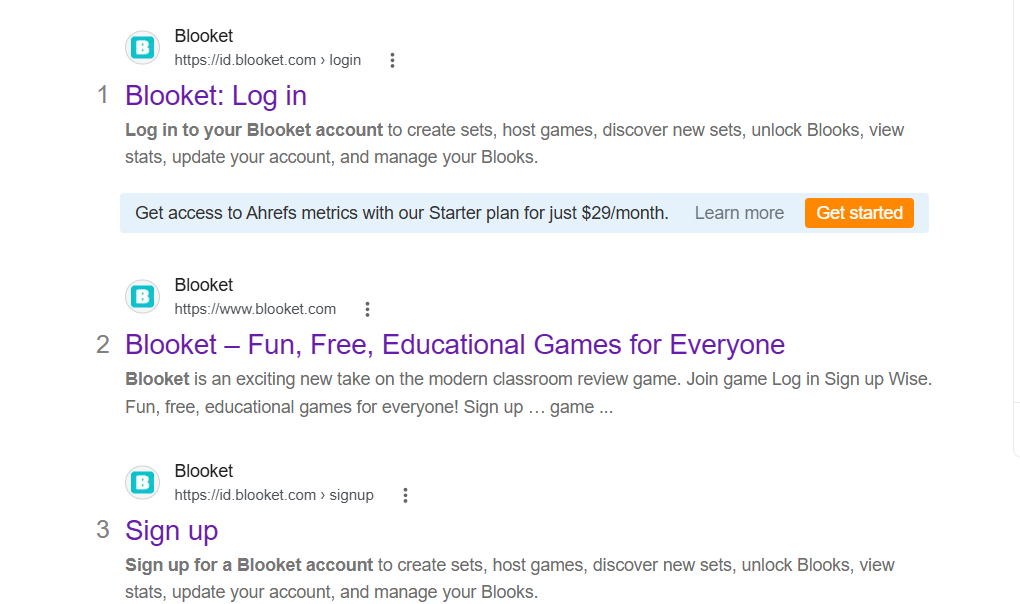
- Step 1. Go to id.blooket.com and click the Google sign in option.
- Step 2. Pick the correct Google account if more than one is signed into that browser.
- Step 3. Approve the connection if this is the first time linking that Google account to Blooket.
If Google sign in is not cooperating, confirm you are actually signed into the right Google account in the browser first. Switching Google accounts before clicking the Blooket sign in button resolves this in most cases.
How to Log In with Clever
- Step 1. On the login page, look for a Log In with Clever option.
- Step 2. Sign in with your district Clever credentials.
- Step 3. Approve the connection between Clever and Blooket if prompted.
The Clever button only appears if a school district has enabled that integration. If it is missing entirely, that district most likely does not use Clever, and email or Google is the correct path instead.
What to Do If You Forgot Your Password
- Step 1. Click Forgot Password on the login page.
- Step 2. Enter the email address tied to the account.
- Step 3. Check that inbox, including the spam folder, for a reset link.
- Step 4. Use the link promptly, since it expires after a short window, and set a new password.
If no reset email ever arrives during a Blooket log in attempt, the most common cause is simply using an email address that does not match the one actually on file, often an old or secondary address rather than the original signup one.
Common Blooket Log In Errors and Fixes
- Invalid password, but you are sure it is correct. You likely signed up with Google or Clever originally and are now trying the email method by mistake. Try Google first if you are not certain which method you used.
- Account temporarily locked. Several failed attempts in a row can trigger a short lockout. Wait 15 to 30 minutes, or reset the password in the meantime rather than continuing to guess.
- Stuck on a loading screen. Clear browser cookies and cache, then reload. Stale session data left behind in Chrome, Firefox, or Safari is a frequent, easy to miss cause.
- Works on one device but not another. A private or incognito window blocks the cookies Blooket needs to stay signed in. Switch to a normal browser window and allow cookies for the site.
- Login page will not load at all on a school network. Try going directly to id.blooket.com rather than the main site, since a school firewall sometimes blocks only the primary domain and misses this one.
Blooket Log In vs Just Playing a Game
A Blooket log in matters far less for a student only joining a single live game. A game code and a nickname get you into a session with no login at all. Logging in only becomes worth the extra step when you want tokens, Blooks, or practice history to actually save.
The full breakdown of when logging in is worth it versus just joining as a guest is covered in the guide to Blooket play login.
Frequently Asked Questions
How do I complete a Blooket log in with Google specifically?
Go to id.blooket.com, click the Google option, and select the correct account if more than one is signed in. Make sure you are already signed into the right Google account in your browser before clicking, since that is the most common point of failure.
Do I need to log in to just play a Blooket game?
No. Joining a live game only needs a code and a nickname. The complete walkthrough for that process is in the guide to the Blooket join code.
What is the difference between blooket.com and id.blooket.com?
They lead to the same sign in system. Blooket.com is the main site, and clicking Login there redirects to id.blooket.com, which handles the actual sign in process. Going directly to id.blooket.com sometimes works even if the main domain is blocked on a restrictive network.
Can a student switch from a student account to a teacher account?
No. Account type is set permanently at signup and cannot be changed afterward. Anyone needing the other account type has to create a separate new account for that role.
Is there a way to log in without a password every time?
Yes, using Google or Clever instead of email skips typing a password on every visit, since both rely on an already signed in account in that browser rather than a separate Blooket password.
Final Thoughts
A Blooket log in only has three real paths, email, Google, or Clever, and knowing which one an account actually uses solves most problems before they start. Keep the correct method in mind, use Forgot Password without hesitation when needed, and reaching the dashboard takes seconds rather than the ten minutes most stuck sign ins actually cost.