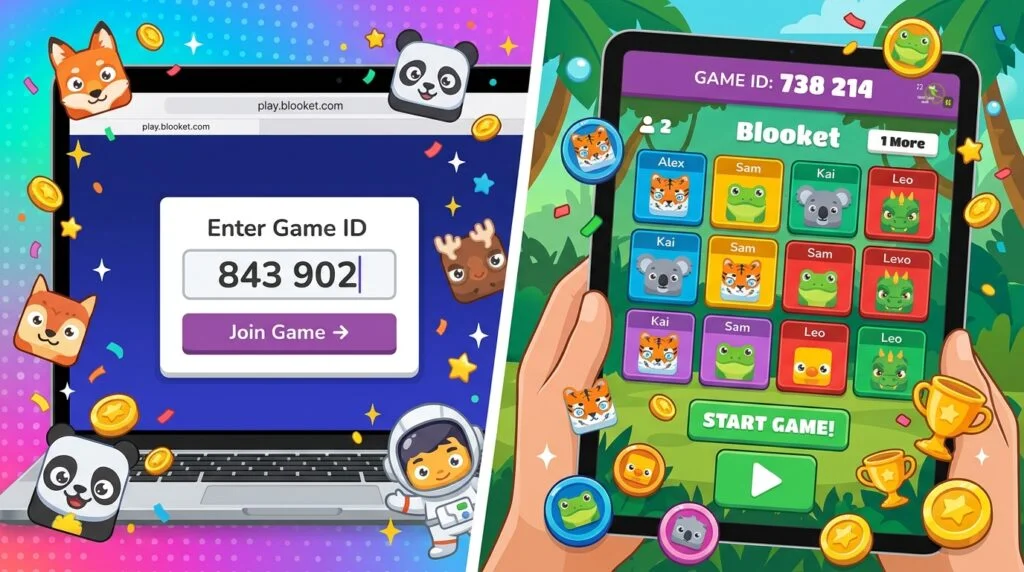
A Blooket Code is the Game ID used to enter a live Blooket game hosted by a teacher or another host. If someone gives you a code, you can normally enter it through the official Blooket play page, choose your nickname, select a Blook, and wait for the host to start the game. Blooket also supports joining through a QR code or a direct Join Link.
If you searched for Blooket code pin, play Blooket join game, play Blooket game ID, or Blooket QR code, this guide explains the complete process without relying on random or outdated code lists. You will also learn whether you need a Blooket account, how to play Blooket solo, what to do when a code does not work, and whether you can join a live game without receiving a code.
Important: This is an independent informational guide published by Bllooket.it.com. Bllooket.it.com is not affiliated with or endorsed by Blooket LLC. “Blooket” is a trademark of its respective owner. Information in this guide is intended for educational purposes.
What Is a Blooket Code?
A Blooket Code is the Game ID associated with a live hosted Blooket session. When a teacher or host prepares a game, Blooket provides a way for players to enter that specific session. Students can join by entering the Game ID at play.blooket.com, scanning the host’s QR code, or using a Join Link shared by the host.
The code is therefore not the same thing as your Blooket password, username, or account information. It is connected to a particular game session. If you are looking for a Blooket code pin, the number you need is normally the Game ID supplied by the person hosting the game.
Blooket’s official joining guide currently describes the Game ID as a 7 digit game code. Because the code belongs to a particular hosted session, searching old websites for previously published codes is usually not a reliable way to enter someone’s current game.
How to Join a Blooket Game With a Code
Joining a live game is straightforward when your teacher or host has given you the current Game ID.
Open the Official Blooket Join Page
Open your browser and go to:
This is the official Blooket location used to enter a Game ID for a live game. Blooket’s own Help Center directs students to this page when joining a hosted game.
Enter the Blooket Game ID
Enter the Game ID provided by your teacher or host in the join field. Check the numbers carefully before continuing. If the code is incorrect, belongs to another session, or the host has already ended the game, you may not be able to enter.
Choose Your Nickname
After the code is accepted, Blooket can ask you to enter the nickname that will appear in the game. Depending on the host’s settings, players may also receive automatically generated names instead.
Choose a Blook and Wait
Once you enter the lobby, you can choose a Blook and wait for the host to start the game. The host controls the live session, so joining the lobby does not necessarily mean the game has started yet. Blooket also supports late joining when the host enables the appropriate setting.
Three Ways to Join a Blooket Game
Typing a Game ID is only one option. Blooket’s official instructions currently provide three ways for students to enter a live hosted game.
| Join method | What you need | Best use |
|---|---|---|
| Game ID | Current Blooket Code | Classroom or manual entry |
| QR Code | Host’s displayed QR code | Phones and tablets |
| Join Link | Link shared by the host | Online or remote classes |
All three methods connect players to the host’s game session. The main difference is how the player receives the invitation.
How to Use a Blooket QR Code
A Blooket QR code is useful when the host is displaying the game on a classroom screen or projector. Instead of typing the Game ID manually, students can scan the QR code with a compatible phone or tablet camera.
The QR code is generated as part of the host’s game joining options. Blooket officially lists QR scanning alongside the Game ID and Join Link as methods for entering a live game.
If a QR code does not work, first check that the camera can clearly read the entire code. If scanning still fails, use the Game ID manually at play.blooket.com if the host has provided it.
Can You Join Blooket Without a Blooket Account?
Yes. A student account is not required to join a live Blooket game. You can enter a hosted game using the Game ID, QR code, or Join Link without creating an account.
However, an account becomes useful if you want to use account related features. Blooket explains that students who want to earn points and use their own Blooks should log in before joining the game.
This means you do not need to stop at the login screen simply because you were given a classroom game code. If your teacher has provided a live Game ID, you can normally join as a player without first creating an account.
Blooket Login vs Joining With a Game Code
These two actions are easy to confuse.
Blooket login is connected to your account. It is useful when you want to use account based features and your own Blooks.
Joining with a Blooket Code connects you to a specific live game. You can join a live game without a student account, although logging in is useful when you want the account related benefits Blooket provides.
So if your teacher says, “Enter this Blooket code,” you do not necessarily need to search for a separate play Blooket login page first.
How to Join a Blooket Game Without a Code
If by “without a code” you mean joining the same live classroom game without manually typing the Game ID, there are two official alternatives: use the host’s QR code or Join Link. Both are official joining methods documented by Blooket.
If you mean playing Blooket without joining anyone else’s live session, Solo play is the better option. Solo games do not require you to enter another person’s live Game ID because you start the game yourself from a question set.
What you cannot reliably do is enter a live classroom session without receiving some form of invitation from the host. A Game ID, QR code, or Join Link is what connects you to that particular session.
How to Play Blooket Solo
Play Blooket Solo when you want to practice or play without waiting for a teacher to host a live game.
According to Blooket’s current Help Center, you first select a question set and then choose Solo. After selecting an available Solo game mode, choose Play and then start a New Game.
Blooket currently lists these seven Solo game modes:
- Tower Defense 2
- Monster Brawl
- Tower Defense
- Café
- Factory
- Crazy Kingdom
- Tower of Doom
Solo play is especially useful when you do not have a classroom Game ID or simply want to practice independently. It is a different experience from joining a teacher hosted live game.
Where Do You Get a Blooket Code?
The safest and most reliable place to get a live Blooket Code is directly from the person hosting the game.
In a classroom, the teacher may display the Game ID on a projector or screen. They can also provide a QR code or share a Join Link. Blooket officially supports all three methods.
If someone sends you a code privately for a game they are hosting, use that current code rather than searching for a random number on another website.
This is important because a code found on an old page may belong to a previous game session. A published list cannot guarantee that a particular code is still connected to an active game.
Are There Free Blooket Codes Online?
You may see websites, social posts, videos, or communities advertising “free Blooket codes” or “working Blooket codes.” Be careful with these lists.
A genuine Game ID is associated with an actual hosted game. A random number displayed on a webpage does not guarantee that a game is currently running or that the host wants strangers to join.
For a classroom game, get the code directly from your teacher. For a public game, use the joining information supplied by the actual host. Avoid websites that ask you to install unknown software, enter your Blooket password, or complete suspicious surveys just to “unlock” a code.
How Do Teachers Get a Blooket Code?
A teacher or other host creates the Game ID by setting up a Blooket game and starting the hosting process.
The host selects a question set, chooses an available game mode and settings, and starts the hosted game. Students can then use the resulting joining information to enter the session.
The official Blooket joining system supports the Game ID, QR code, and Join Link, so the host can choose whichever method works best for the class.
Why Is My Blooket Code Not Working?
A Blooket Code can fail for several different reasons. Before assuming the code itself is wrong, check whether the host is still running the game and whether you entered the number correctly.
If the code is correct but Blooket still does not load, the problem may be related to your browser, an extension, or your network. Blooket’s official troubleshooting page specifically notes that browser extensions such as AdBlockers can interfere with parts of the site. It also says that network or firewall restrictions involving firebaseio.com can affect joining or hosting.
Check the Game ID
Ask the host to confirm the current Game ID. Do not assume that an older code from a previous session will still work.
Try the Official Join Page
Go directly to play.blooket.com rather than relying on an unfamiliar third party website.
Check Browser Extensions
If Blooket does not load correctly, temporarily checking whether a browser extension is interfering can help identify the problem. Blooket specifically mentions AdBlocker type extensions as one possible cause.
Check Your Network
School networks can sometimes restrict services required by websites. Blooket says that blocking firebaseio.com can prevent some parts of Blooket from working correctly.
Try Another Supported Joining Method
If the teacher has shared a QR code or Join Link, try that instead of manually entering the Game ID. Blooket supports all three joining methods.
Can You Use a Blooket Code on a Chromebook?
Yes, the joining process can be accessed through a browser on a Chromebook. Open the official Blooket play page and enter the Game ID supplied by the host.
If Blooket does not load on a school Chromebook, the issue may be caused by school network restrictions, browser extensions, or other device policies. Blooket’s troubleshooting documentation notes that extensions and firewall restrictions can interfere with joining games.
If the device is managed by your school, do not try to bypass administrator restrictions. Ask your teacher or school technology administrator for help if the site is blocked.
Can You Join Blooket on a Phone?
Yes. A phone can be used to join through the Game ID, and the QR code option can make joining easier when the host displays it.
If you receive a Join Link, you can also open that link directly. Blooket’s official documentation treats the Game ID, QR code, and Join Link as the available ways to join a live game.
The same basic process applies whether you are using a phone, tablet, Chromebook, Windows computer, or Mac: use the joining information provided by the host.
Blooket Code vs Game ID
You may see both Blooket Code and Game ID used when searching for the same thing.
For a live hosted game, Blooket’s official Help Center refers to the number students enter as the Game ID and also describes it as the 7 digit game code.
So when your teacher says “enter the Blooket code,” and the Blooket join page asks for a Game ID, they are referring to the same joining information for that live session.
Blooket Code vs QR Code vs Join Link
These are three different ways of reaching the same live game.
A Game ID requires you to type the number manually.
A QR code lets you scan the code using a compatible device.
A Join Link lets you open the shared URL directly.
Blooket officially supports all three methods, so you can use whichever option the host provides.
Do You Need a Blooket Account to Play?
Not for a normal live hosted game. Blooket states that student accounts are not required to join games. If you want to earn points through your account and use your own Blooks, you should log in before joining.
An account is therefore useful but is not the same thing as a Game ID. Your account identifies you within Blooket, while the Game ID connects you to a particular hosted game.
Blooket Account and Dashboard guide →
What If the Host Ends the Game?
If the host ends the live session, the Game ID is no longer a way to enter that finished session. If you are trying to join and the code suddenly stops working, ask the host whether the game is still active or whether they started a new session.
A new hosted session can have different joining information, so always use the current code or Join Link provided by the host rather than relying on an older code.
Is It Safe to Join a Random Blooket Game?
Joining a game through Blooket’s normal joining system is different from downloading an unofficial “code tool” or giving your account credentials to another website.
You should never need to provide your Blooket password to a stranger simply to join a normal game. Be especially cautious with pages that claim they can generate unlimited codes, unlock special access, or require suspicious downloads before showing a Game ID.
For a classroom session, the safest option is to use the code, QR code, or Join Link provided directly by your teacher or host.
Frequently Asked Questions About Blooket Code
What is a Blooket Code?
A Blooket Code is the Game ID used to join a live hosted Blooket game. Blooket’s official joining instructions currently describe the live Game ID as a 7 digit game code.
Where do I enter a Blooket Code?
Go to play.blooket.com and enter the Game ID provided by your teacher or host.
Is Blooket Code the same as Game ID?
For a live hosted game, yes. Blooket uses the term Game ID for the code players enter to join the session.
Do I need to log in to use a Blooket Code?
No. Blooket says students do not need an account to join a live game. However, logging in is required if you want to use your account’s points and Blooks.
Can I join Blooket without a code?
You can join a live game without manually typing a code if the host gives you a QR code or Join Link. If you want to play without joining a live hosted session, you can use Blooket’s Solo mode instead.
How do I play Blooket Solo?
Open a question set, select Solo, choose an available game mode, press Play, and start a new game. Blooket currently lists seven Solo game modes.
What should I do if my Blooket Code does not work?
First confirm the current Game ID with the host. Then try play.blooket.com, check browser extensions, and consider whether your network or firewall is blocking part of Blooket. Blooket specifically identifies browser extensions and network restrictions as possible causes of joining problems.
Can I use a Blooket QR Code instead?
Yes. Blooket officially supports QR codes as one of the three ways students can join a live hosted game.
Can I join Blooket on Chromebook?
Yes. You can use a browser to access the Blooket joining page. If the site is blocked on a school device, contact the appropriate teacher or administrator rather than trying to bypass the school’s restrictions.
Where can I get a working Blooket Code?
Get the current Game ID directly from the teacher or host. A code published on an unrelated website may belong to an old or different game and cannot be assumed to be active.
Is a Blooket Code the same as a Blooket account?
No. A Blooket account is your user account, while a Game ID is used to enter a specific live game. You can join a live Blooket game without a student account.
Final Takeaway
A Blooket Code is simply the Game ID that connects you to a live hosted game. The easiest method is to open play.blooket.com, enter the current Game ID, choose your nickname and Blook, and wait for the host to begin. If the host provides a QR code or Join Link, you can use either of those instead.
You do not need a Blooket account just to join a live game, although logging in is useful if you want to use your account related points and Blooks. And if you do not have a live Game ID at all, Solo mode gives you a legitimate way to play without joining someone else’s hosted session.
If your code is not working, verify the current Game ID first and then check browser extensions and network restrictions. Using the official Blooket joining process is much more reliable than depending on random code lists or unofficial websites.
Fact checked against Blooket’s official Help Center and Terms of Service in September 2026.