Import Quizlet to Blooket: The Fastest Way to Build a Set in 2026
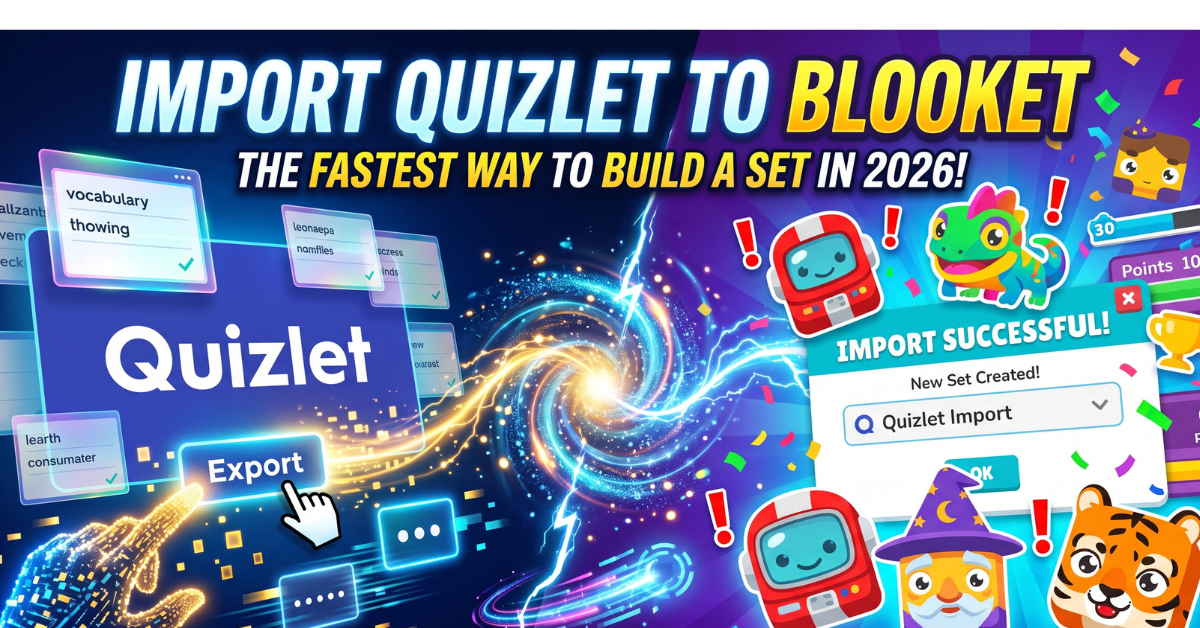
A hundred and fifty flashcards, three hours of typing, and a class that just wants to play Blooket already. Retyping every term and definition by hand feels like punishment, and the good news is you never have to. Blooket ships a built in Quizlet import tool that turns a finished flashcard set into a playable question library in about two minutes, free on every account.
This guide walks through the full process to import Quizlet to Blooket, including the export step where most first attempts stall, plus the cleanup work afterward that decides whether the imported set actually plays well once students are in the game.
Can You Really Import Quizlet Into Blooket?
Yes, you really can import Quizlet to Blooket, and it is genuinely one of the most useful time saving tools the platform offers. The feature ships on every free account with no Plus subscription required. A 75 term vocabulary set typically imports in under a minute, and a 200 term set runs closer to two minutes including a first pass review.
Under the hood, Blooket reshapes each Quizlet card into its own question and answer format. By default the term lands as the correct answer choice while the definition becomes the prompt students read, and Blooket fills in three extra wrong answers on its own by pulling related vocabulary from elsewhere in the same set.
One rule matters more than any other here. Only public Quizlet sets can be imported, since a private set blocks the export function Blooket depends on. Sets that were built using Quizlet Plus features can also block copying unless you hold a Quizlet Plus account of your own.
What You Need Before Starting
The process bridges two separate platforms, so double check every item below first, since a single gap on the Quizlet side is enough to stall the whole thing before it starts.
| Requirement | Detail |
| Blooket account | Free tier is enough, no Plus needed |
| Quizlet account | Must have access to the target set |
| Set visibility | Must be Public, private sets cannot export |
| Device | A laptop or desktop, switching two tabs is clumsy on a phone |
Neither Blooket Plus nor Quizlet Plus is required for a standard public set. A restriction only shows up when the source set itself was assembled using one of Quizlet’s paid creation features.
How to Import Quizlet to Blooket, Step by Step
The full sequence takes well under five minutes once you know it, whether the set is one you own or a public one from another teacher. Pay close attention around the export step, since that is where most first time attempts get stuck.
- Step 1. Open the Create page. Sign into Blooket with whichever method you used at signup, Google, Apple, or email. From the dashboard, click Create in the top navigation. Three creation methods appear: Manual Entry, CSV Import, and Quizlet Import.
- Step 2. Name the set and pick Quizlet Import. Give it a specific title, something like Chemistry Periodic Table Review reads far better in a growing library than Quiz 3. Add a short description if you tend to build a large set library over time, then click Create Your Set.
- Step 3. Choose Your Quizlet or Search Quizlet. Your Quizlet pulls from sets already in your personal library. Search Quizlet lets you browse any public set by keyword. Either option opens a new tab and prompts a Quizlet login if you are not already signed in.
- Step 4. Locate the set inside your Quizlet library. A set that belongs to someone else needs to be copied into your own library before it can export at all. Open the three dot menu on that set and pick Make a Copy. If that option looks grayed out, the set was built with Quizlet Plus tools and cannot be duplicated on a free account.
- Step 5. Run the actual export. This is the step that trips up nearly everyone the first time. Copying the Quizlet page address and pasting it into Blooket does not work, Blooket reads plain text, not a web address. Instead, open the three dot menu below the set name and choose Export.
- Step 6. Copy the exported text. Leave the export dialog on its default settings, Tab between term and definition, New Line between rows, Random Order unchecked. Click Copy Text and the whole set copies to your clipboard as plain text, one card per line.
- Step 7. Paste it into Blooket and check the layout. Switch back to the Blooket tab and paste into the import box. A two column preview appears, terms on the left become answer choices, definitions on the right become question prompts. Tick Flip Questions and Answers if you would rather show the term and ask for its meaning.
- Step 8. Add the questions, review, and save. Click Add Questions and Blooket lands you on the Set Edit page. Spend a few minutes scanning the auto generated wrong answers and checking for any definition that got cut off, then click Save Set.
Adding Quizlet Questions to a Set You Already Built
A set does not need to start from Quizlet to use this feature. If thirty manual questions already exist and twenty more from a Quizlet list would round it out, the same import tool works directly inside an existing set.
- Step 1. Open the dashboard and find the set that already has questions in it.
- Step 2. Open Set Edit by clicking the pencil icon next to that set.
- Step 3. Scan the question list for a Quizlet Import button sitting beside the manual Add Question control, positioned toward the top of the page, and click it.
- Step 4. Run through the same export, copy, and paste flow described above. The new questions land at the bottom of the list, and every original question stays untouched.
This is a clean way to pair teacher written intro questions with a Quizlet vocabulary list on the same topic, without juggling two separate sets or retyping anything twice.
What to Check After the Import
The two minute import is the fast part. The next ten minutes of cleanup decides whether the set actually holds up once a full class is playing it live.
Checking the Auto Generated Wrong Answers
Blooket builds three wrong answer choices per question by sampling other terms already in the set. Large, varied sets of 75 terms or more tend to produce solid distractors this way. Smaller sets, or ones full of near synonyms, are where the auto generated answers start to misfire, sometimes producing a wrong answer that is technically also correct, or one so unrelated that the real answer becomes obvious without any actual knowledge. A noticeable share of imported questions end up needing at least one answer choice adjusted by hand from the Set Edit page, and catching that before hosting beats discovering it mid game in front of a class.
Matching the Game Mode to Your Content
Not every mode suits every kind of imported content equally well.
| Content Type | Mode That Fits Best |
| Foreign language vocabulary | Gold Quest, fast rounds reward quick recall |
| Science definitions | Tower Defense, slower pace suits longer text |
| History dates and events | Battle Royale, elimination keeps focus sharp |
| Math facts | Cafe, high repetition suits short answers |
| Geography and capitals | Racing, single word factual answers |
When unsure which mode fits a freshly imported set, Gold Quest is a safe default for vocabulary style content, since it works at any class size without adding confusion about the mechanics themselves.
Turning Single Word Terms Into Full Questions
A raw Quizlet term is often just a single word, Mitochondria, shown against four definitions. That works, but after a few rounds it turns into pattern matching rather than real recall. Rewriting the strongest twenty or thirty questions in a set as a full question, such as asking which organelle produces ATP through cellular respiration, tests the same knowledge at a noticeably higher level. For a hundred question set that rewrite pass takes roughly eight minutes and measurably changes how the game plays.
Quizlet Import Compared to Every Other Way to Build a Set
Blooket actually offers five separate paths to a finished set, and picking the right one for the situation saves real time across a school year.
| Method | Best For | Rough Setup Time |
| Quizlet Import | Content that already exists as Quizlet flashcards | 2 to 3 minutes |
| CSV Import | Content already sitting in a spreadsheet | 8 to 12 minutes |
| AI Generate | A fresh topic with no existing material at all | Under 2 minutes |
| Manual Entry | New sets built from nothing, especially image heavy ones | 35 to 50 minutes |
| Question Bank | Reusing a set someone else in the community already built | Under 1 minute |
For most classroom situations, Quizlet Import and CSV Import together cover the large majority of real world cases. AI Generate is worth knowing about too, since it can produce a usable question set from just a topic name when no source material exists yet at all, which is a faster starting point than Manual Entry for a brand new unit.
Mistakes That Break an Import
Most failed attempts to import Quizlet to Blooket trace back to the same small handful of errors, and every one of them is easy to avoid once you know what to look for.
- Pasting the set’s web address instead of exporting the text. This is by far the most common mistake. Blooket needs plain text copied through the Export menu, not a link, and a pasted address returns a blank or broken import every time.
- Trying to import a private set. Private sets never show an Export option at all. Switch the set to Public inside Quizlet’s privacy settings first, or ask the owner to share a public copy.
- Skipping the answer review after import. Auto generated wrong answers are not perfect, and an error a class notices mid game tends to stall the whole session for several minutes while everyone argues about it.
- Assuming a Quizlet Plus set will copy cleanly. Sets built with certain premium Quizlet features, some image types and audio among them, often block copying for a free tier Quizlet account entirely.
- Expecting images and audio to carry over. They generally do not. Text moves cleanly through the import, but images sometimes arrive as broken links and audio never transfers at all, so budget a few extra minutes to re add visuals manually afterward.
- Overloading a single import with 300 plus terms. Very large sets risk timing out mid paste. Splitting anything past roughly 300 terms into two or three smaller imports, then merging them from the Set Edit page, avoids the failure entirely.
- Ignoring special characters in the source text. Accented letters, symbols, or oddly formatted punctuation carried over from Quizlet occasionally render incorrectly after paste, so a quick scan for garbled characters is worth adding to the same review pass as the distractor check.
Frequently Asked Questions
Is it free to import Quizlet to Blooket?
Yes. The import tool is available on every free Blooket account with no upgrade required, and a standard public Quizlet set needs no Quizlet Plus subscription either. The only premium requirement appears when the original set itself was built using Quizlet Plus features.
Why is there no Export option showing on my Quizlet set?
Export only shows up for sets already saved into your own Quizlet library. For someone else’s set, use Make a Copy from the three dot menu first. If that option is grayed out, the set was built with Quizlet Plus features that block copying on a free account.
Does the imported set update automatically if the Quizlet original changes later?
No. The import captures a one time snapshot, and later edits to the Quizlet source never carry over automatically. Reflecting an update means re exporting the revised set and either appending it to the existing Blooket set or building a fresh one from the new export.
How many terms can a single import handle?
Roughly 300 terms is the practical ceiling before a single import risks timing out. Anything larger should be split into chunks of 150 to 200 terms, imported separately, then combined using the set merge option on the Set Edit page.
Can I import someone else’s public Quizlet set?
Yes, you can import Quizlet to Blooket from any set marked Public, not just your own. Use Search Quizlet inside Blooket’s import flow, save a copy to your own library, then export and paste it exactly like a personal set. Since public Quizlet sets are not fact checked, a quick accuracy pass before hosting is worth the extra minute.
Final Thoughts
Once you know how to import Quizlet to Blooket, one of the most tedious parts of building a class library disappears entirely. What would take the better part of an hour to retype by hand runs in roughly two minutes instead, and multiplied across a full year of units, that saved time turns into real hours back.
The export step is the only real hurdle in the whole process, three dots, Export, Copy Text. Get that part right and everything else is close to automatic. Spend the time it saves on the two things that actually matter afterward, reviewing the auto generated answers and picking a mode that fits the content, since those two decisions do more for how the session plays than the import itself ever will.