Blooket Play or Host: The Complete Guide to Both Roles
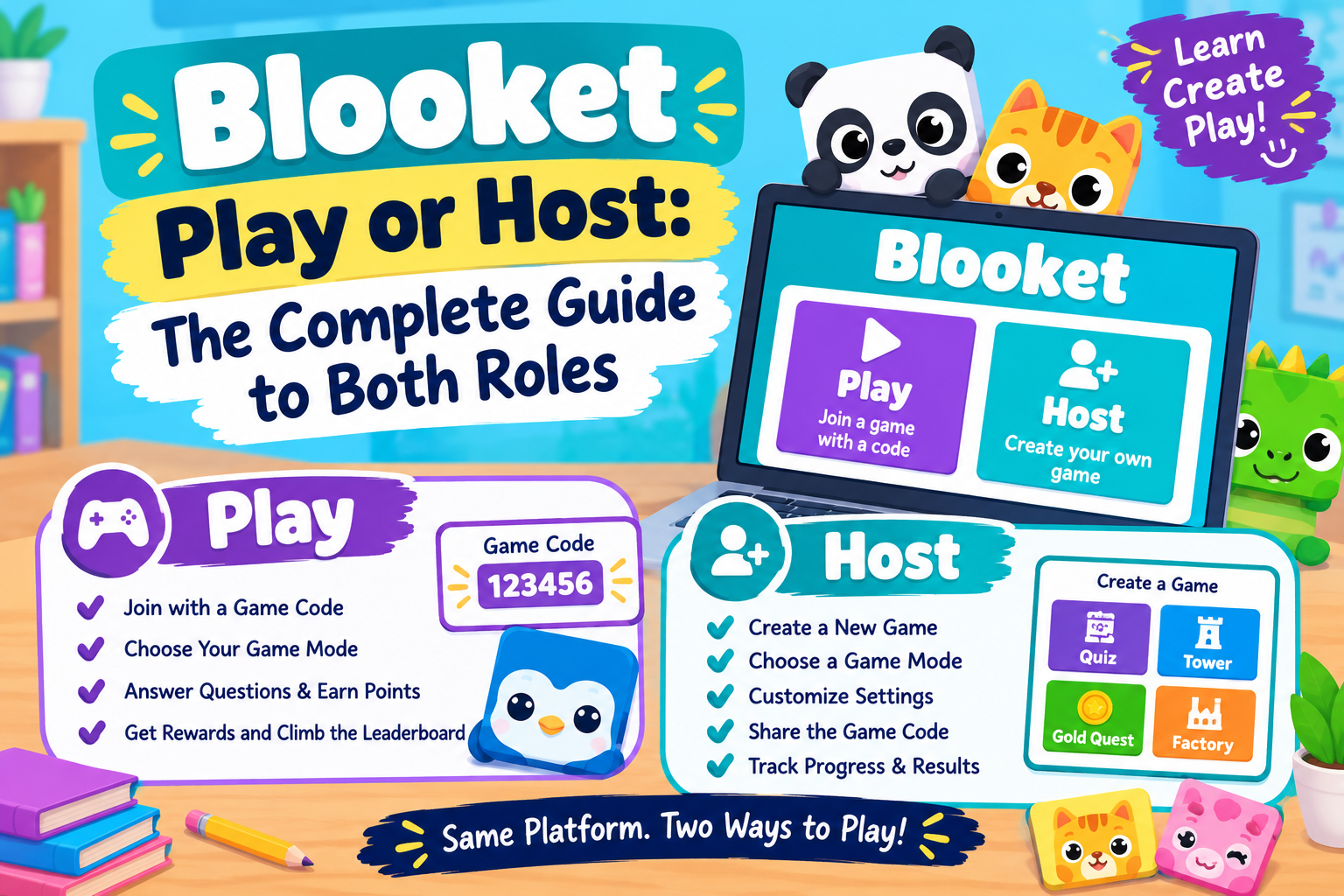
Play and host are opposite sides of the same game, and searching Blooket play host together almost always means one thing: uncertainty about which role actually applies to you. A teacher preparing a class review and a student who just got handed a code are looking for completely different instructions, even though they both technically end up on the same platform.
This Blooket play host guide walks through both sides in full, the exact steps to play and the exact steps to host, what each role can see that the other cannot, and the mix ups that send people looking for the wrong instructions in the first place.
The One Question That Decides Your Role
If someone gave you a code, a link, or a QR code to enter, you are playing. If you are the one picking a question set and about to share a code with others, you are hosting. Almost nobody needs both sets of instructions at the same time, so settle this question before reading any further.
| Your Situation | Role | What You Need |
| A teacher gave you a code | Play | A browser and a nickname |
| You got a homework link with a due date | Play | The link, nothing else |
| You are running the game for a class | Host | A Blooket account and a set |
| You want to practice alone, no code involved | Play | A browser, solo mode |
| You are a student building a set for classmates | Host | A free account, same as a teacher |
What Each Role Can Actually See
Play and host are not just different instructions, they are genuinely different views of the same game. A host has a private control panel the whole time, live player counts, a lock or end game button, and eventually a full results breakdown. A player sees none of that. Their screen only ever shows the questions, their own progress, and whatever leaderboard the mode displays.
| What You See | As a Player | As a Host |
| Live player list | No | Yes |
| Ability to lock or end the game | No | Yes |
| Post game accuracy report | No, only your own score | Yes, for the whole class |
| The join code before the game starts | Only if shared with you | Generated automatically |
| Control over mode and settings | No | Yes |
How to Play Blooket, Step by Step
Playing covers joining a live game, completing a homework link, or running a solo session, and all three share the same starting point.
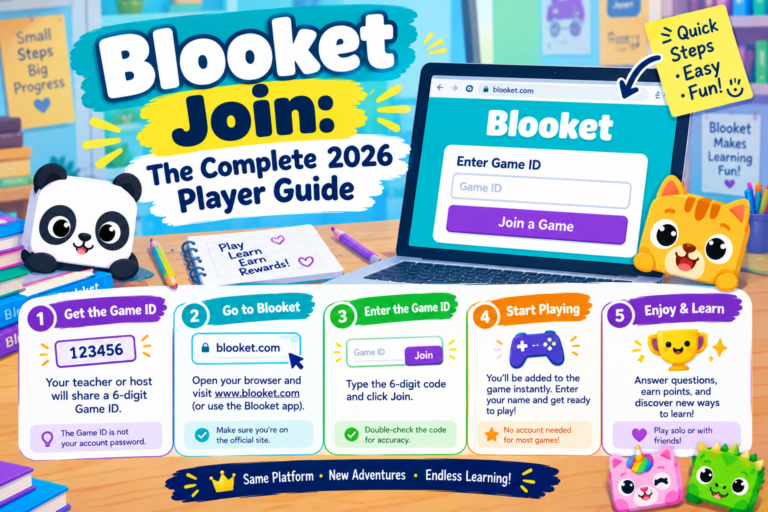
- Step 1. Open a browser and go to play.blooket.com for a live game or homework link, or blooket.com and the Discover tab for solo practice.
- Step 2. Enter the code or click the link you were given. Solo play skips this step entirely.
- Step 3. Type a nickname, following whatever naming rule your host or teacher set.
- Step 4. Wait in the lobby for a live game, or jump straight in for solo and homework sessions.
- Step 5. Answer questions until the game, the homework goal, or your own solo session ends.
No account is required for any of these three paths, though logging in first does let tokens and Blooks carry over between sessions. The full breakdown of every play format, including troubleshooting a code that will not work, is covered in the main guide to playing Blooket, with a dedicated deep dive in the guide to the Blooket join code specifically.
How to Host Blooket, Step by Step
Hosting means running the session other people join, and it always starts with an account, free or paid.
- Step 1. Log into your Blooket account and open your dashboard.
- Step 2. Pick a question set, either one you built or a public one from Discover.
- Step 3. Click Host, then choose a game mode. This single choice shapes the whole session’s energy.
- Step 4. Configure the timer and question order, then click Host Now to generate a fresh join code.
- Step 5. Share that code, wait for players to join, then click Start once enough people are in the lobby.
Every setting that actually matters, mode selection by lesson type, timer lengths, and the settings most hosts forget to touch, is covered in full in the guide to hosting a Blooket game.
Can One Person Do Both?
Yes, constantly, and the Blooket play host split is never permanent for any one person. A teacher hosting a live review is a player the moment they open a different set solo later that evening. A student can host a game for classmates using the exact same free account they use to join other teachers’ sessions. Nothing about a Blooket account locks a person into only one role. The account type chosen at signup, student or teacher, affects available classroom tools, not whether someone can play or host.
Common Play and Host Mix Ups
- Typing a join code into the dashboard instead of play.blooket.com. The dashboard is where hosts manage sets, not where players enter codes. Codes only go into play.blooket.com.
- Assuming hosting requires a paid account. A free account hosts nearly every mode for up to 60 players, no payment needed at all.
- Thinking a host can see individual answer choices live. The host dashboard shows participation and scores, not which specific option each player picked during the game itself.
- Believing only teachers can host. Any account holder can host, including students building and running their own sets for friends.
- Searching for an app to download for either role. Both play and host run entirely in a browser. No app store download exists for either side.
Device and Setup Differences
Playing works comfortably on almost anything, a phone, a shared classroom tablet, or a school Chromebook, since the only real requirement is a browser and a stable enough connection to keep up with the timer. Hosting benefits from a larger screen and a stronger connection, since the host is usually projecting a join code for a full room and managing a live dashboard at the same time. Neither role has ever required installing anything beyond a standard web browser.
Frequently Asked Questions
Is Blooket play host the same thing as Blooket join?
Play covers the same ground as join, entering a game as a participant. Host is the separate, opposite role of running that same session for others. The two terms describe two different jobs, not two names for the same action.
Do I need different accounts to play versus host?
No, one account can do both. There is no separate player account and host account. Whether someone is playing or hosting on any given day depends entirely on what they are doing in that moment, not which account they logged into.
Can a student host a game instead of a teacher?
Yes. Any Blooket account, student or teacher, can host a live game. The hosting controls are identical either way, and the only real difference on a teacher account is access to classroom management tools like rosters.
What happens if the host also wants to play in their own game?
Hosts do not play in their own live session. The host role is strictly observing and controlling the game from the dashboard, while players answer the questions. A host wanting to actually play the content themselves would need to join as a player in a separate session, or try the set in solo mode instead.
Why does my search for Blooket play host lead to two totally different sets of instructions?
Because they genuinely are two different processes serving two different people in the same game. This guide exists specifically to sort that confusion out in one place before sending you to the full, dedicated walkthrough for whichever role actually applies.
Final Thoughts
Blooket play host will always show up together in searches because they describe the two halves of every single game on the platform. Once you know which side of the code you are on, the rest is straightforward: players need nothing but a browser and a code, and hosts need an account, a set, and a couple of minutes to configure a session. Bookmark whichever full guide matches your actual role, and this mix up never costs you time again.